Email Setup


There are three parts to setting up your email.  This takes about about 5 minutes.


  1. Part 1 - Setup an Email Account on the Server
  2. Part 2 - Setup an Email Account on your Computer
  3. Part 3 - Adjust the Email Settings on your Computer


You will find it much easier to print these instructions before continuing.


Part 1. Setup an Email Account on the Server

This part involves setting up your email account on the server.   For each step, please substitute your domain name, user name, and password.


Log in to your web account using the following URL:

http://yourdomain.com/manager

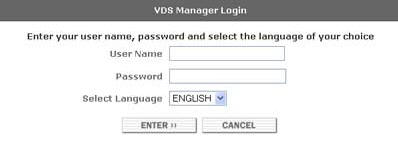
You should see a screen like this.  Enter your username and password.

Motion Networks - VDS Manager


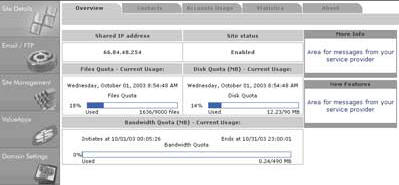
Then, you will see the main screen (below).  Click on the Email/FTP tab on the left.


Motion Networks - Control Panel


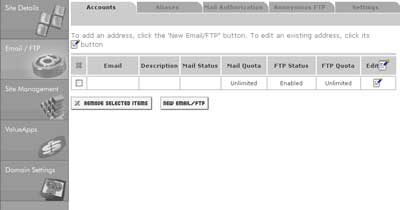
Click the New Email/FTP button near the center


Motion Networks - Email  Control Panel


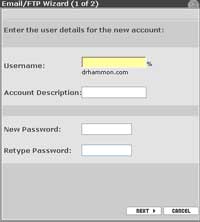
 In this window...

Motion Networks - Control Panel Wizard Screen Shot


Enter the following information:

Username - Enter a name for this email account. If you enter the name jimmy, your email address will be jimmy@yourdomain.com.

Account Description - Enter the name that people will see by default when they receive an email from the account.

New Password - Enter a password for the account.

Retype Password - Retype the password exactly.


Click NEXT to continue


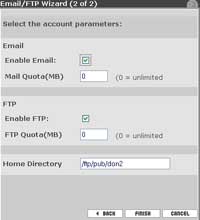
Accept the following information information similar to the screen below:

Motion Networks - Control Panel Wizard Screen Shot

Enable Email - Check this box to enable email for the user.

Mail Quota (MB) - Enter a limit in MB that the email box will hold. Recommended setting is 10. Enter 0 (zero) for unlimited. 

Enable FTP - Check this box if you want this user to have an FTP account.

FTP Quota (MB) - Enter a limit in MB that this user will be allocated for FTP. Enter 0 (zero) for unlimited.

Home Directory - Do not touch.  Leave setting as-is.


Click the Finish button.  You're done with Part 1.  Next go to Part 2.


Part 2. Setup an Email Account on your Computer

These instructions are for MS Outlook 2002.  Your email program may be similar to Outlook 2002 (Outlook 2000, Front Page Express, etc.) so these instructions may assist you too.


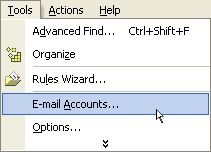
Start Outlook.  On the menu bar at the top, select Tools, then select Accounts.


Motion Networks - Outlook


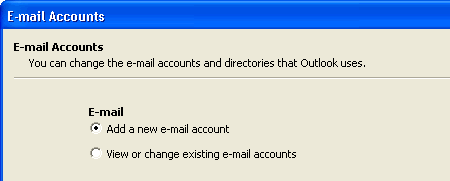
Create a new account.


Motion Networks - Outlook


Click Next.

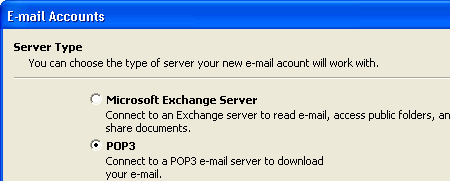
Select "POP3".

Motion Networks - Outlook


Click Next.

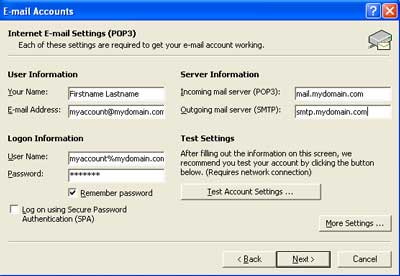
 Enter your information similar to the following screen::
 

Motion Networks - Outlook Internet E-mail Settings (POP3)


User Information:

Your Name
- Enter any name that people will see when they receive email from you.

Email Address - Enter the exact name of the email account you created in Part 1.   Use this format: "myaccount@mydomain.com"

Login Information:

Account name - Enter your full user name in this format: "username%yourdomain.com"

Password - Enter the password for the account.

Server Information:

Incoming mail server (POP3) - Enter your incoming mail server as:

Outgoing mail server (SMTP) - Enter your ISP's outgoing mail (SMTP) server as: smtp.yourdomain.com.


Make sure the "Log on using Secure Password Authentication (SPA)" option is NOT selected.


Click Next.


Click Finish.


Part 3. Adjust the Email Settings on your Computer


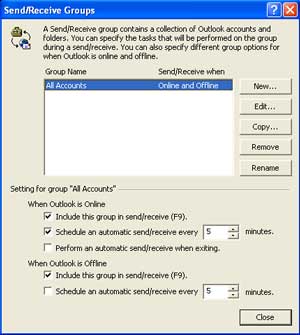
Part 3 adjusts your email settings on your computer to match advanced features on your hosting account.  Please follow the steps below to setup your computer to send/receive email automatically every 5 to 10 minutes. 


This step is a necessary to "workaround" advanced Spam blocking features that come with your account.

If you don't follow this part,  you may get a "Relaying denied" error message when you try to send email.


The message could not be sent because one of the recipients was rejected by the server. The rejected e-mail address was 'somebody@yahoo.com'. Subject 'Nothing, Account: 'mail.mydomain.com', Server: 'smtp.mydomain.com', Protocol: SMTP, Server Response: '550 5.7.1 <somebody@yahoo.com>... Relaying denied', Port: 25, Secure(SSL): No, Server Error: 550, Error Number: 0x800CCC79


These instructions are for MS Outlook 2002.  Your email program may be similar to Outlook 2002 (Outlook 2000, Front Page Express, etc.) so these instructions may assist you too.


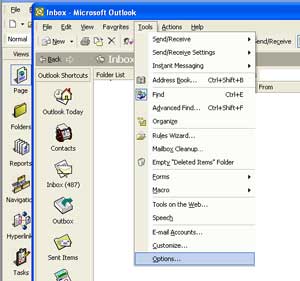
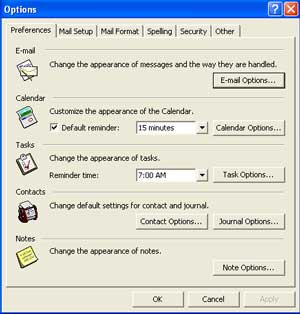
Start Outlook.  On the menu bar at the top, select Tools, then select Options.

Motion Networks - Outlook


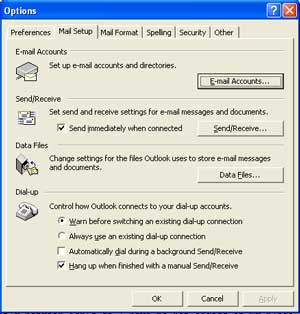
Click on the Mail Setup tab at the top.
Motion Networks - Outlook Mail Setup


Click on the Send/Receive button on the middle right

Motion Networks - Outlook Send/Receive


Adjust the settings to "Schedule an automatic send/receive every 5 minutes"

Motion Networks - Outlook Schedule Automatic Send/Receive

 Click Close to accept/complete